Wednesday, 30 December 2020

Data and Graphs

New math resource! Perfect for distance learning or the face-to-face classroom, this math resource is an interactive presentation to help students understand data by collecting, describing, and representing statistical information. Students learn about different types of graphs and charts and how to represent the data. The Google Slides™ or PDF activities are suited for grade two, grade three, or grade four students. 

Distance Learning - Data and Graphs includes PDF and Google Slides. 

PDF Users: The presentation and activities can be presented as a PDF. Annotated notes are provided. 

GOOGLE Users: You can download the presentation and activities directly to your Google account with just the click of a button! Print: The slides can be printed as anchor charts or used as a presentation. 

The SLIDES explain: 
  • Pictographs
  • Bar Graphs
  • Line Plots
  • Line Graphs
  • Tally Marks
  • Pie Charts
  • Charts
  • Lists

EACH type of graph is presented in three ways: Example of the graph A questions for students to collect data and then represent in a graph. A completed graph for students to interpret data.


View the preview video to learn more! 


Sunday, 23 August 2020

Mapping out the Year for Combined Grades

Teaching a split grade or combined grades? Unsure where to start? 

This video shows how to create a yearly plan! From looking at outcomes to mapping out a pacing guide, I outline how start planning.

Want a sample pacing guide and blank template as shown in the video? Join Eclectech Educator's Mailing List! After subscribing, the resources will be sent to you via email. The form can be found on the right column of the blog!

Enjoy the video! Please follow my video channel to receive more free printables and updates of new products and teaching goodies!


Thursday, 30 July 2020

How To Teach A Science Mini Lesson

I did it!
I finally made my first educational video.


I wanted to share ideas for teaching science. Using examples from my Teachers Pay Teachers resources, I share how to engage students in scientific concepts using:

  1. Connections
  2. Teaching
  3. Active Engagement
  4. Linking

The video shows how science can be hands-on, inquiry-based, and FUN!

Please enjoy the video and post your feedback.


Saturday, 11 July 2020

Science

Science is one of my favourite subjects! The students love to be engaged in activities that deepen their curiosity about the natural and constructed world.

When creating my science units, I aim to engage student in inquiry about a topic. The unit has ample opportunities to:
  • ask questions about objects, organisms, and events in the environment 
  • plan and conduct a simple investigation
  • use simple equipment and tools to gather data 
  • use data to construct a reasonable explanation 
  • communicate investigations and explanations
  • promote enjoyment of science

My science units often have a presentation to focus the inquiry and introduce each concept. It is often a discussion starter, so I display the relevant slide at the beginning of the lesson.


In my Motion and Position unit, the concept of friction is introduced. We had discussed the definition of friction as the contact force between two objects moving against each other. Now we needed to explore this concept with concrete examples. Sometimes friction is needed to slow us down. We talked about how running shoes help us on the gym floor during a lively game of tag and how winter boots help us when we step onto a patch of ice. The slide serves as starting point for our discussion and inquiry of friction. We then progressed to explore friction through hands-on investigations.


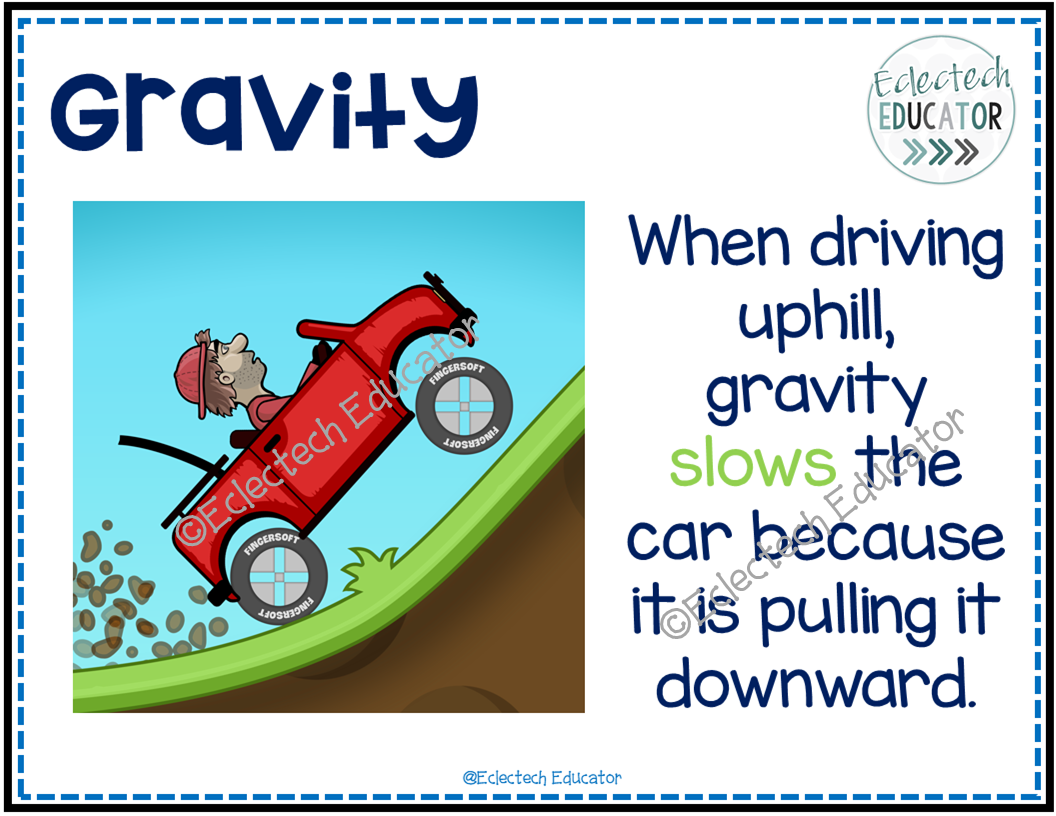
In subsequent lessons, we explored other forces that impact motion. As we explored gravity, we discussed how we need to pedal our bicycle harder on an incline. We then tested this theory of gravity using created slopes and toy cars.

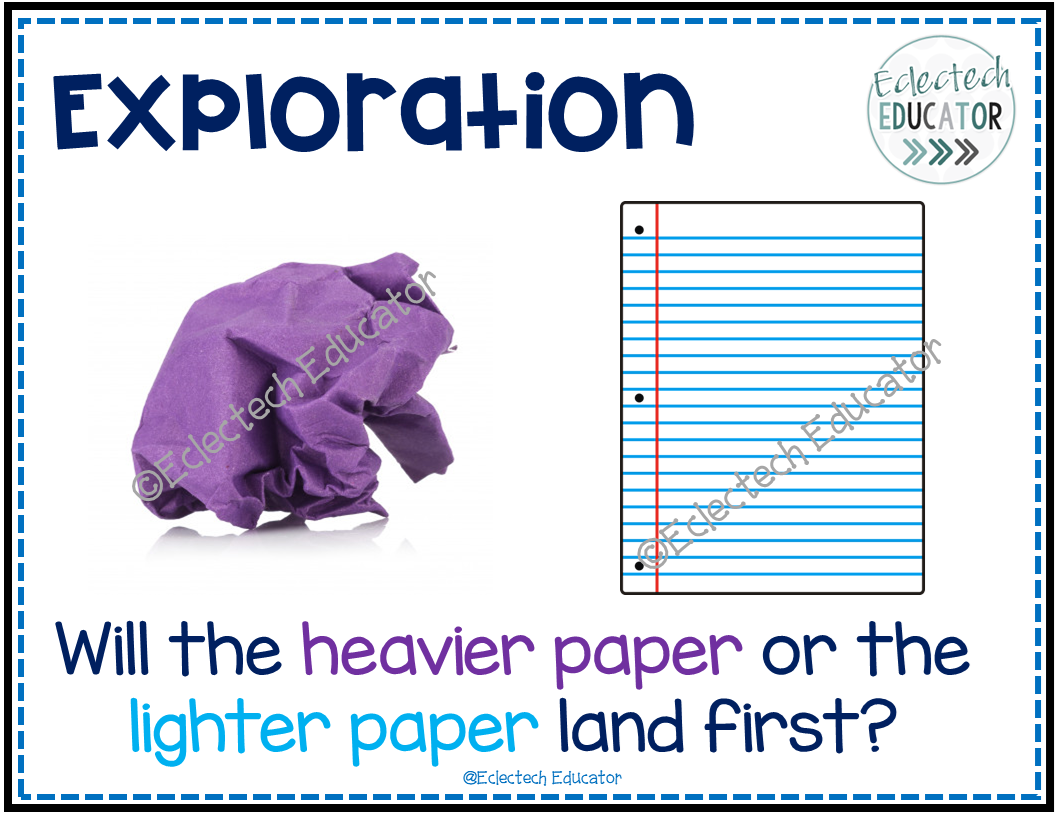
Explorations help solidify students' understanding of a concept and clear up confusions. Hands-on experiments allow students to test predictions, gather relevant data, and communicate their scientific learnings. In this exploration, we are exploring air resistance or drag.


Students are often surprised that the lighter piece lands first. This is a great opportunity to discuss drag. Resistance and friction cause changes in acceleration. Air resistance (drag) slowed down the heavier piece. Drag opposes the direction that the object is moving and slows it down.

To culminate the unit, we like to complete a hands-on project to show off our learnings. In this unit, the students build a roller coaster that can move a marble at least 2 different ways. They are provided materials and design with the following questions in mind:
  • What factors affect the movement? 
  • Is there a pattern to the movement?


We also like to play a cooperative digital game! The unit contains questions for students to answer. The next slide shows the answer. It is a fun way to check what we have learned!


This unit, Motion and Position, is available in my TPT store. It includes slides, activities, and low-prep experiments featured in this post AND MUCH MORE to help students explore motion - how things move, their relative position, and forces that impact movement.  It is perfect for distance learning and can be easily uploaded to your digital classroom.

I hope this post shows how I teach science and helps you with ideas for your classroom. As mentioned at the beginning of this post, I love teaching science!



Friday, 29 May 2020

Organizing Your Bookmarks

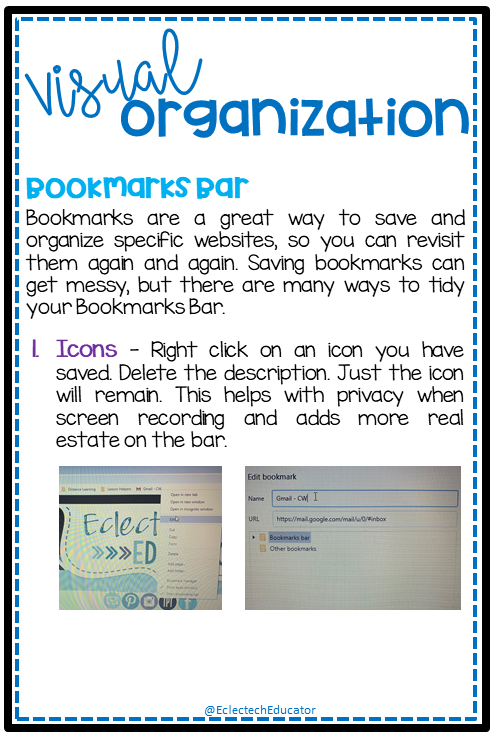
Visual Organization

I have included some tips for organizing your browser to help you find frequently visited sites quickly , obtain more space on your Bookmarks Bar, and to hide sites you may not want students to see when screen recording. Do students really need to see my Amazon order or that I bookmarked a wine lover site?


Wednesday, 13 May 2020

Boom Cards

Boom is a platform that allows teachers to purchase and/or create digital activities for students. Boom “decks” are made up of individual, digital task cards that are gamified for students to complete.

Why Use?

  • Differentiating your instruction (you can assign different students different decks!) 
  • Giving students immediate, automatic feedback 
  • Getting students EXCITED about learning with badges and fun digital “rewards” for their work
  • Holding students accountable for their independent work Saving time (less grading!) 
  • Saving paper

What Do I Need?

  • A computer, tablet, or interactive whiteboard 
  • A free or paid Boom account 
  • An internet connection to access the Boom decks

How can I use Boom cards that I purchase on TeachersPayTeachers? 

  • Purchase decks or bundles from a TeachersPayTeachers store. 
  • Once purchased, you will receive a PDF download. 
  • Open up the PDF. Inside the PDF, you will find links to a Boom deck. Click the link to add the deck to your Boom library. You will have to create or log into your Boom account. Once a link is clicked, it will ALWAYS remain in your Boom library for you to access!

How much does it cost to use Boom? 

  • You can use Boom for free. 
  • However, a paid account allows you to: get reports about student progress and activity, easily assign students multiple decks to work on, and create an entire classroom of student logins

If I only have a free account, how can I use Boom cards with my students? 

  • Once logged into your Boom teacher account, go to “Library,” find the deck you want students to use
  • Click on “FastPin” and select “Generate New Pin.” 
  •  You then have two options: Either: Copy and paste the complete link for students to play, OR Go to the Boom main page. Click on the “FastPlay” button. Enter the pin and click “play.” Important: A pin is valid for 5 days. After the 5 days are up, you can still access the cards, but you will need to generate a new pin for student use.


View the preview of my first Boom Deck entitled Nonfiction Text Features. The 39-deck has students practice the purpose and function of nonfiction text features, such as headings, charts, and timelines.


Tuesday, 14 April 2020

Distance Learning

Distance or remote learning is uncharted territory for most of us. We are planning and thinking about teaching in new ways.

To help you in this new journey, I have compiled tips and strategies to help make this process more effective for you, your students, and their caregivers.


Planning

  • Weekly Planner - This FREE resource provides a week at a glance. It can be used as a planner for teachers or uploaded to your digital classroom as an organizer for students. The text boxes are editable, so it can be customized to your needs.

Morning Meeting or Starting The Day

  • Flipgrid - Foster short video-based discussions on classroom topics. Great for Morning Meetings, as well as reading fluency, book talks, Socratic discussions, and check-ins.
  • Zoom - Engage students: chat, screen annotation, polling, non-verbal feedback, and breakout rooms. Use the features of Zoom to guide different types of interactive activities.
  • Google Meet - Meet is a replacement for Google Hangouts video chat. Using this video chat service to connect with classrooms across the globe. Connect with teachers, meet with parents, or have students meet together and with professional experts. 
  • Kahoot - Run checks for understanding or exit tickets. If you don't have time to make quizzes, search millions of public Kahoots to play or remix. Go beyond memorization of facts and allow Kahoot! to introduce scenario questions/prompts with multiple decisions; stimulate conversation from the results.
  • Screencastify - Create instructional videos to introduce or reinforce concepts. Alternatively, create videos to explain assignments and solutions or to provide feedback. Have students create videos to explain understandings, demonstrate fluency, or ask questions.

Reading

  • Epic! - Epic! is a digital library of children’s books. The site presents book choices to students. Students can browse by their interests or categories, and see eye-catching book covers. Epic! makes listening to and reading books incredibly appealing. There are book videos and quizzes, as well!
  • NewsELA - A library of high-interest, cross-curricular, adjustable nonfiction texts. Newsela's range of reading levels invites targeted intervention and differentiation. Assign articles to individual students or small groups, using the quizzes to track progress and make further recommendations. Select articles for targeted instruction on specific reading outcomes while modeling good annotation and close-reading strategies for your students.
  • ReadWorks - Differentiate reading instruction with texts. Features, such as the ability to curate lists and view assignments over time, make it easy to monitor student progress.
  • Dreamscape - Combines games with reading passages and interactive questions to create engaging activities!
  • Google Forms - Create surveys, ask questions, administer quizzes, or use as a method for submitting work. Teachers have the opportunity to track an abundance of information and store it in one centralized location. 

Math

  • Khan Academy -  The instructional videos help students learn new content, and the interactive quizzes help teachers track student progress, Khan Academy offers help in many subjects like math, science, economics, art, and computer science, as well as resources for test prep and teacher learning.
  • Prodigy - Have students practice their math skills as they navigate a fantasy world. Built to captivate students and motivate learning, Prodigy has students practice math skills  through assigned and customized assignments.
  • Math Presentations - I have created many presentations to help guide students learning in several mathematical topics: 


I hope that these tips help you navigate this new territory of home learning. If you have any additional tips or suggestions, please post in the comments. We are all in this together!